Image Blur
Blur entire images or specific areas. Perfect for privacy or artistic effects.
Drop your image here
or click to browse • PNG, JPG, WebP, GIF
Privacy Protection
Blur faces, license plates, or sensitive information in screenshots
Background Effects
Create professional portrait-style images with blurred areas
Design Element
Add depth and focus to your designs by blurring certain areas
Related Tools
About This Tool
Blurring images is essential for privacy protection, artistic expression, and professional photo editing. Our free online image blur tool lets you apply blur effects to entire images or specific areas with precise control over intensity and style — all from your browser. Whether you need to obscure a face in a photo before sharing it publicly, create a depth-of-field effect, or add a frosted glass aesthetic to a background, this tool delivers professional results without requiring complex editing software.
Privacy is one of the most common reasons people blur images. Blurring faces, license plates, addresses, and personal information before posting photos online protects the privacy of individuals and prevents identity theft. Journalists and content creators blur identifying details in documentary photos. Real estate agents blur personal items in property photos. The tool makes it easy to apply effective blurring that cannot be easily reversed, providing genuine privacy protection rather than a superficial overlay.
Beyond privacy, blur effects are widely used in creative and commercial contexts. UI designers create frosted glass (glassmorphism) effects for modern interfaces. Photographers simulate shallow depth of field to draw attention to a subject. Marketers blur backgrounds to make product images stand out. Social media users apply artistic blur effects for aesthetic posts. The tool offers multiple blur styles including Gaussian blur for soft, even distribution, and selective blur for focusing on specific areas while keeping the rest of the image sharp.
How to Use This Tool
Upload Your Image
Drag and drop the image file into the tool. Any common image format works — JPEG, PNG, WebP, or GIF.
Choose Blur Mode
Select "Full Blur" to apply blur to the entire image, or "Area Blur" to blur only a specific region that you define.
Adjust Blur Intensity
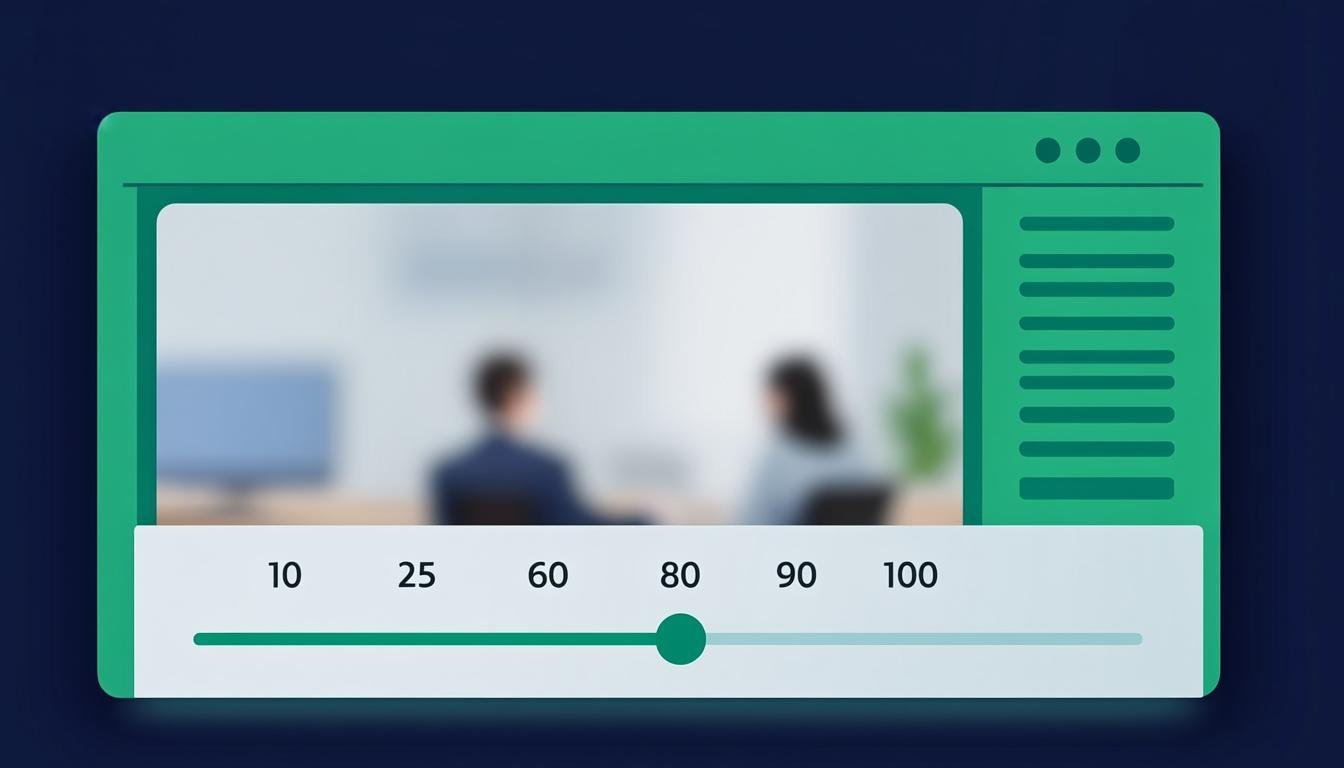
Use the intensity slider to control the strength of the blur effect. Preview the result in real time to find the right level of blurring.
Define the Blur Area (Optional)
If using area blur, click and drag on the image to define the region to blur. The rest of the image remains sharp.
Download the Result
Once you are satisfied with the blur effect, click download to save the processed image. The blur is permanently applied to the output file.
Advantages & Use Cases
Effective Privacy Protection
Permanently obscure faces, license plates, addresses, and personal information with genuine pixel-level blur that cannot be reversed.
Selective Area Blurring
Blur specific regions of an image while keeping the rest sharp — perfect for highlighting subjects while obscuring backgrounds.
Creative Effects
Create depth-of-field simulation, bokeh backgrounds, frosted glass effects, and artistic blur styles for visual impact.
Adjustable Intensity
Fine-tune the blur strength from subtle softening to complete obscurity with a smooth, responsive intensity slider.
Instant Results
Real-time preview lets you see the blur effect as you adjust it, enabling rapid iteration until you achieve the perfect result.
Supported Formats & Recommendations
The image blur tool supports JPEG, PNG, WebP, GIF, and BMP input formats. Blurred images can be downloaded in the same format as the input. JPEG is recommended for photographs where file size matters, while PNG preserves the exact pixel data and is better for graphics. The blur effect is applied at the pixel level and becomes a permanent part of the output image. For privacy applications, download the blurred version for sharing and keep the original unblurred file secure. High-resolution images produce the best results because there is more pixel data for the blur algorithm to work with.